Azure Virtual Desktop: A Complete Guide for 2026
Remote work has fundamentally transformed how businesses operate, creating unprecedented demand for flexible, secure desktop solutions. Azure Virtual Desktop has emerged as Microsoft's comprehensive answer to this challenge, delivering cloud-based virtualization that enables organizations to provide Windows desktops and applications to users anywhere. As businesses increasingly prioritize distributed workforces and hybrid operational models, understanding how this platform functions becomes essential for IT leaders, technical recruiters, and organizations seeking to modernize their infrastructure while maintaining security and performance standards.
Understanding Azure Virtual Desktop Infrastructure
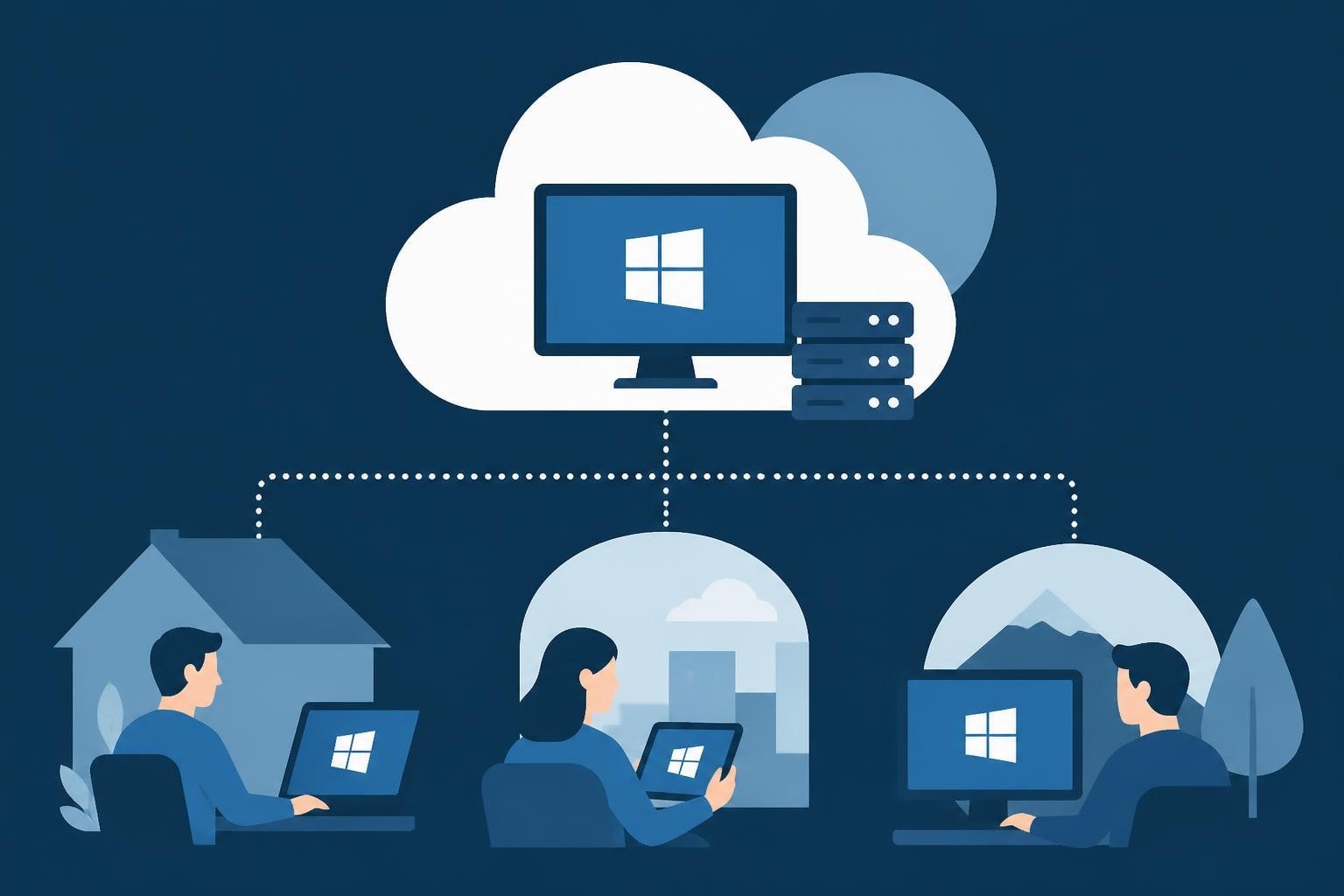
Azure Virtual Desktop represents Microsoft's desktop and application virtualization service running on Azure cloud infrastructure. The platform allows organizations to deploy full Windows experiences from the cloud, eliminating the need for physical desktop infrastructure while providing centralized management and enhanced security controls.
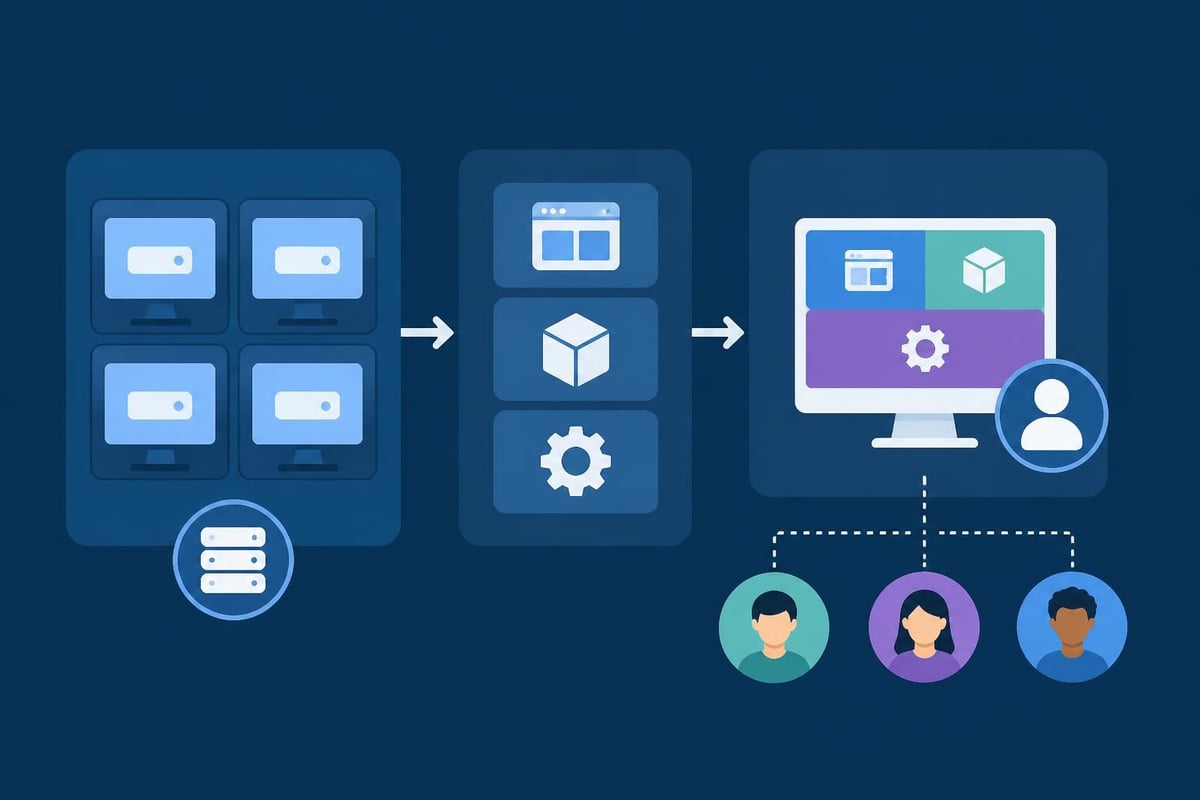
The service operates through a multi-component architecture that includes host pools, application groups, and workspaces. Host pools contain one or more identical virtual machines that serve as desktop environments. Application groups determine which applications or desktops users can access. Workspaces organize these resources into logical groupings for end users.
What distinguishes this solution from traditional virtual desktop infrastructure is its tight integration with the broader Azure ecosystem. Organizations leverage existing Azure services for identity management, networking, storage, and monitoring, creating a unified infrastructure management experience. According to Microsoft's official documentation, the platform supports both Windows 10 and Windows 11 multi-session environments, allowing multiple concurrent users on a single virtual machine-a capability unique among Windows operating systems.
Key Components and Architecture
The technical foundation consists of several interconnected elements:
- Session hosts: Virtual machines that run desktop and application workloads
- Azure Active Directory: Provides identity and access management
- Virtual networks: Enable secure connectivity between resources
- Storage accounts: Host user profiles, data, and application files
- Gateway service: Manages remote connections without requiring VPN
Organizations can choose between pooled and personal desktop configurations. Pooled desktops assign users to available resources dynamically, optimizing cost efficiency for task workers. Personal desktops provide dedicated virtual machines for users requiring persistent environments or specialized configurations.
The platform leverages FSLogix profile containers to manage user profiles separately from the virtual machines themselves. This separation ensures that user data, settings, and applications persist across sessions and remain available even when accessing different session hosts within a pool.
Deployment Strategies and Configuration
Implementing azure virtual desktop requires careful planning around capacity, performance, and user experience. The deployment process involves multiple stages, from initial Azure subscription setup through final user access configuration.
Initial Setup Requirements
Before deployment, organizations must establish foundational Azure resources. This includes configuring Azure Active Directory for user authentication, setting up virtual networks with appropriate subnets, and determining storage strategies for user profiles and data. Setting up Azure Virtual Desktop involves creating resource groups, deploying domain services, and establishing connectivity frameworks.
Network architecture deserves particular attention. Proper networking configuration ensures optimal performance and security. Organizations must consider bandwidth requirements, latency sensitivity, and connectivity options between Azure resources and on-premises infrastructure.
| Deployment Phase | Key Activities | Typical Duration |
|---|---|---|
| Planning | Requirements gathering, capacity planning, architecture design | 2-4 weeks |
| Foundation | Azure subscription setup, networking, identity configuration | 1-2 weeks |
| Build | Host pool creation, image preparation, application installation | 2-3 weeks |
| Testing | Validation, performance testing, user acceptance | 1-2 weeks |
| Production | User migration, monitoring setup, optimization | 2-4 weeks |
Virtual machine sizing directly impacts both performance and cost. Appropriate sizing considerations require analyzing user workload patterns, application requirements, and concurrent usage expectations. Light task workers might function effectively on smaller instances with 2 vCPUs and 8GB RAM, while power users running demanding applications may require 8 vCPUs and 32GB RAM or more.
Image Management and Application Delivery
Creating optimized virtual machine images forms the foundation for consistent user experiences. Organizations typically start with Microsoft-provided marketplace images, then customize them with required applications, configurations, and security settings. This master image becomes the template for all session hosts within a host pool.
Application delivery follows several models:
- Image-based deployment: Applications installed directly in the master image
- MSIX app attach: Applications packaged and attached dynamically to user sessions
- RemoteApp: Individual applications published without full desktop access
- Third-party solutions: Integration with application virtualization platforms
Image management requires ongoing maintenance. Regular updates, security patches, and application version changes necessitate image refresh cycles. Automated image building pipelines using Azure DevOps or similar tools streamline this process, ensuring consistency and reducing manual effort.
Security and Compliance Framework
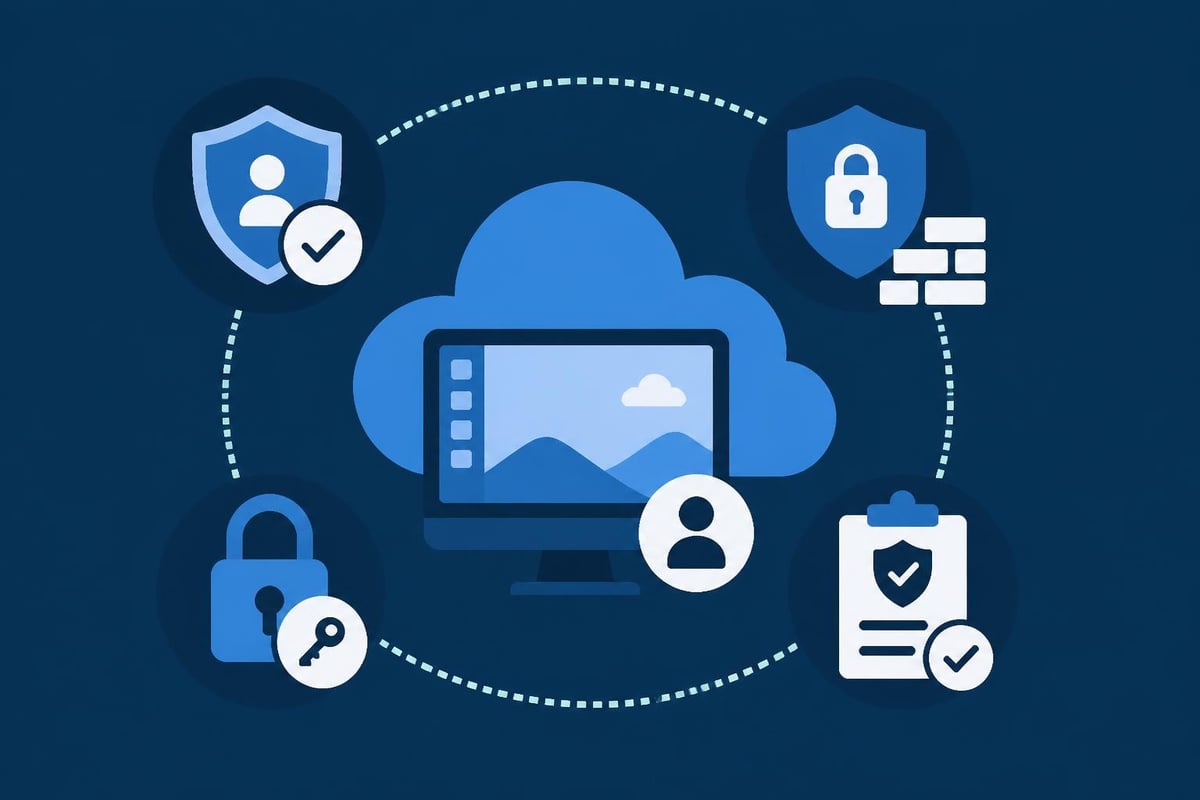
Azure virtual desktop incorporates multiple security layers addressing authentication, network protection, data security, and compliance requirements. The platform leverages Azure's comprehensive security infrastructure while providing additional controls specific to virtual desktop scenarios.
Identity and Access Controls
Authentication flows through Azure Active Directory, enabling organizations to implement multi-factor authentication, conditional access policies, and risk-based sign-in protection. Administrators can restrict access based on user location, device compliance status, or risk level, ensuring that only authorized users from approved devices access corporate resources.
Role-based access control (RBAC) governs administrative permissions. Organizations assign specific roles to IT staff, limiting their capabilities to only what their responsibilities require. A desktop support technician might have permissions to manage user sessions but not create new host pools, while infrastructure administrators maintain full control over deployment and configuration.
Session-level security includes network-level authentication, encryption in transit using TLS 1.2 or higher, and optional Azure Bastion integration for administrative access. User data remains protected through encrypted storage, Azure Information Protection integration, and data loss prevention policies.
Compliance and Data Governance
For businesses in regulated industries, azure virtual desktop supports various compliance frameworks including HIPAA, PCI DSS, SOC 2, and ISO 27001. Microsoft maintains certifications for Azure infrastructure, while organizations remain responsible for proper configuration and policy implementation within their deployments.
Data residency controls allow organizations to specify geographic regions where user data and virtual machines reside. This capability addresses regulatory requirements mandating data storage within specific jurisdictions. Companies operating across multiple regions can deploy separate host pools in different Azure regions while maintaining centralized management.
Audit logging captures detailed activity information, including user sign-ins, resource access, configuration changes, and administrative actions. Integration with Azure Monitor and Azure Sentinel enables security information and event management (SIEM) capabilities, providing real-time threat detection and automated response workflows.
Performance Optimization and Cost Management
Achieving optimal performance while controlling costs represents a persistent challenge in virtual desktop environments. Azure virtual desktop provides multiple mechanisms for balancing these competing priorities.
Capacity Planning and Scaling
Understanding user behavior patterns enables effective capacity planning. Organizations should analyze when users typically access their desktops, how long sessions last, and what resources applications consume during peak usage periods.
Autoscaling capabilities automatically adjust the number of running session hosts based on demand. During business hours, additional virtual machines start to accommodate peak usage. During evenings and weekends, excess capacity shuts down, eliminating unnecessary costs. Management best practices emphasize implementing scaling plans that align with organizational usage patterns.
Several scaling approaches exist:
- Depth-first: Fill existing session hosts before starting new ones
- Breadth-first: Distribute users evenly across all available hosts
- Scheduled: Start and stop hosts based on predetermined times
- Dynamic: Adjust capacity based on real-time CPU and memory metrics
Cost optimization extends beyond virtual machine scaling. Organizations should evaluate Azure Reserved Instances for predictable workloads, providing significant discounts compared to pay-as-you-go pricing. Hybrid benefit licensing allows businesses to use existing Windows licenses, reducing overall costs. Design principles for cost optimization provide additional strategies for managing expenses.
Performance Monitoring and Troubleshooting
Comprehensive monitoring identifies performance bottlenecks before they impact users. Azure Monitor collects metrics from virtual machines, including CPU utilization, memory consumption, disk performance, and network throughput. Custom alerts notify administrators when thresholds exceed acceptable levels.
Azure Virtual Desktop Insights provides specialized dashboards showing connection reliability, session performance, and user experience metrics. This tool helps identify patterns such as slow connection times, frequent disconnections, or poor application responsiveness.
| Performance Metric | Target Threshold | Impact if Exceeded |
|---|---|---|
| CPU Utilization | Below 80% average | Slow application performance, lag |
| Available Memory | Above 20% free | System instability, crashes |
| Disk Queue Length | Below 2 | Application delays, poor responsiveness |
| Round-trip Latency | Below 150ms | Noticeable input delay, poor user experience |
| Sign-in Duration | Below 30 seconds | User frustration, productivity loss |
Network performance critically affects user experience. The Remote Desktop Protocol (RDP) requires consistent bandwidth and low latency for smooth operation. Organizations should measure network conditions between user locations and Azure regions, selecting deployment regions that minimize latency for the majority of users.
Integration with Business Workflows
Modern businesses operate through interconnected systems and processes. Azure virtual desktop excels when properly integrated with existing tools, platforms, and workflows rather than functioning as an isolated solution.
Application Compatibility and Migration
Not all applications transition seamlessly to virtualized environments. Organizations must inventory existing applications, test compatibility, and address any issues before broad deployment. Legacy applications requiring hardware dongles, USB peripherals, or specific graphics capabilities may need special configuration or alternative delivery methods.
Application testing should occur in environments mirroring production configurations. Performance benchmarking ensures applications respond adequately in virtualized settings. Some resource-intensive applications like video editing software or CAD programs may require GPU-enabled virtual machines for acceptable performance.
For businesses leveraging AI talent and technical recruiting platforms, ensuring seamless access to development environments, collaboration tools, and specialized software becomes critical. Solutions like Augmnt ATS demonstrate how modern HR technology integrates verified matching and candidate fraud detection into hiring workflows, requiring reliable remote access for distributed recruitment teams evaluating AI professionals across geographic boundaries.
Supporting Remote and Hybrid Workforces
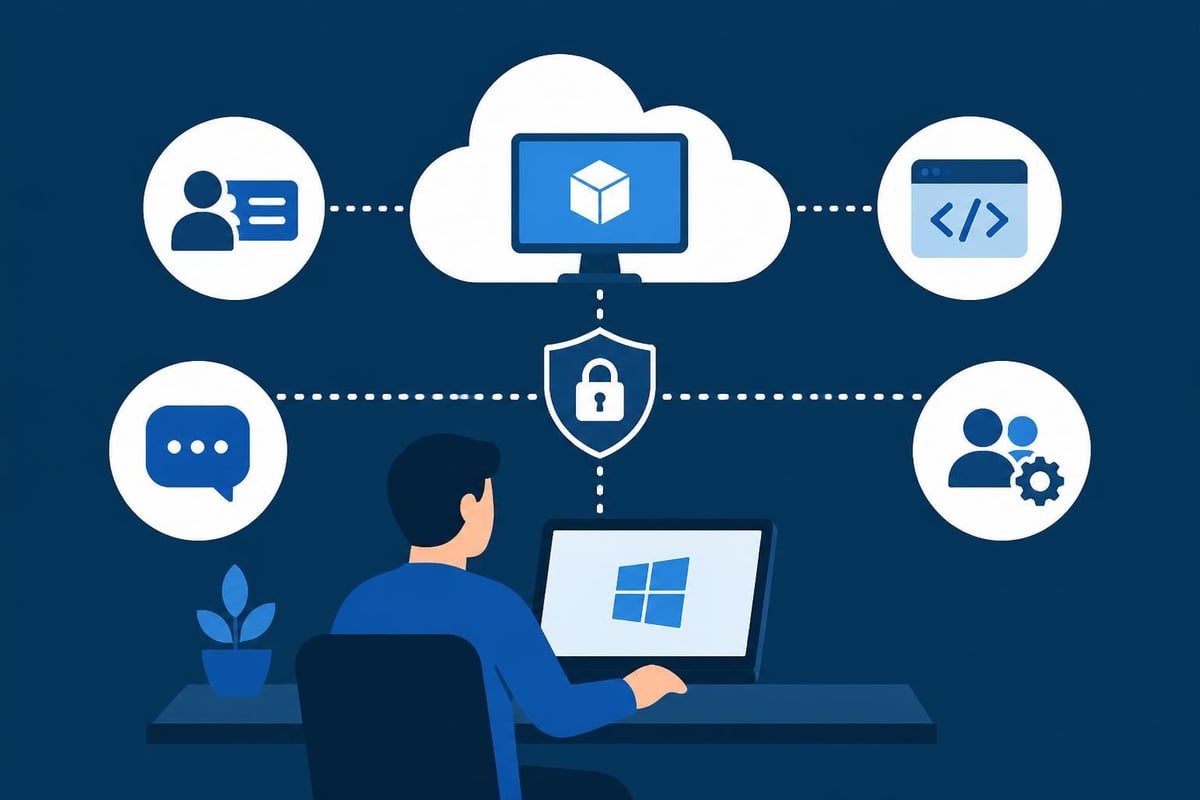
The shift toward distributed teams demands desktop solutions accessible from any location or device. Azure virtual desktop supports Windows, macOS, iOS, Android, and web browser clients, enabling access from corporate laptops, personal devices, tablets, or smartphones.
Bring-your-own-device (BYOD) policies benefit from virtualization's security model. Corporate data remains within Azure datacenters rather than syncing to personal devices. Even if a user's device is lost or compromised, sensitive information stays protected within the virtual environment.
User experience consistency across devices enhances productivity. Whether accessing from a home office desktop or a tablet during travel, users encounter identical applications, data, and settings. FSLogix profiles ensure personalization follows users regardless of which session host they connect to or what device they use.
Advanced Configuration and Customization
Beyond basic deployment, azure virtual desktop supports sophisticated configurations addressing specialized requirements and complex organizational structures.
Multi-Region and Disaster Recovery
Organizations operating globally or requiring business continuity capabilities can implement multi-region deployments. This approach places host pools in multiple Azure regions, providing both geographic distribution for better user experience and redundancy for disaster recovery.
Active-active configurations distribute users across regions based on location, minimizing latency. Active-passive designs maintain a secondary region as backup, activated only during primary region outages. Azure Site Recovery can automate failover processes, ensuring minimal disruption during incidents.
Profile management across regions requires careful planning. Azure Files supports geo-redundant storage, replicating user profiles to secondary regions. Organizations must balance data consistency requirements against replication costs and complexity.
Customization and User Experience
Personalization capabilities enhance user satisfaction and productivity. Windows 10 and Windows 11 multi-session environments support user-specific customizations including wallpapers, theme preferences, and application settings. FSLogix ensures these customizations persist across sessions and devices.
Start menu and taskbar layouts can be standardized across the organization or customized by department. XML-based configuration files define which applications appear, their arrangement, and whether users can modify layouts. This standardization helps new users quickly locate needed tools while maintaining brand consistency.
Multimedia redirection improves performance for video conferencing and media playback. Teams media optimization routes audio and video directly between user devices and conferencing services, bypassing the virtual desktop infrastructure. This approach reduces latency and bandwidth consumption while improving call quality.
Monitoring User Experience and Adoption
Understanding how users interact with virtual desktops informs optimization efforts and identifies training needs. Azure Virtual Desktop Insights tracks user connection patterns, session durations, and resource consumption per user or group.
Application usage analytics reveal which applications users access frequently and which go unused. This information guides licensing decisions, image optimization, and application retirement planning. Removing unused applications from master images reduces storage requirements and improves provisioning times.
User feedback mechanisms complement quantitative metrics. Regular surveys or integrated feedback tools capture subjective experience data that numbers alone cannot reveal. Users might report specific application behaviors, request additional tools, or identify workflow obstacles requiring attention.
Managing Costs and Resource Efficiency
Financial management separates successful virtual desktop implementations from expensive misadventures. Azure virtual desktop offers flexibility, but without proper governance, costs can escalate quickly.
Organizations should implement Azure Policy to enforce configuration standards, prevent oversized virtual machine deployments, and require appropriate resource tagging. Tags enable cost allocation by department, project, or cost center, providing visibility into which business units consume resources.
Development and testing environments frequently run unnecessarily during off-hours. Automation schedules shut down non-production resources outside business hours, eliminating waste without impacting availability when needed. Azure Automation runbooks or Logic Apps orchestrate these schedules across multiple host pools and resource groups.
Storage represents another cost optimization opportunity. Standard SSD provides adequate performance for most scenarios at lower cost than premium SSD. Organizations should evaluate whether high-performance storage truly benefits specific workloads or if standard tiers suffice. Archiving old user profiles and data to cool or archive storage tiers reduces ongoing costs for infrequently accessed information.
The best virtual desktop services in 2026 continue evolving with new capabilities and pricing models. Regular review ensures organizations leverage the most cost-effective options while maintaining required functionality and performance levels.
Technical Support and Troubleshooting
Even well-designed deployments encounter issues requiring investigation and resolution. Establishing effective support processes minimizes user disruption and maintains productivity.
Common issues include connection failures, slow performance, application crashes, and profile corruption. Systematic troubleshooting begins with isolating whether problems affect individual users, specific applications, entire host pools, or all resources. Connection diagnostics tools within the Azure portal identify network issues, authentication failures, or gateway problems.
Performance problems often stem from resource constraints. Monitoring CPU, memory, and disk metrics during reported slowness reveals whether virtual machines lack capacity. Network latency measurements identify connectivity issues between user locations and Azure regions. Application-specific problems may require vendor support or configuration adjustments.
Profile issues manifest as missing settings, lost data, or sign-in failures. FSLogix profile troubleshooting involves examining profile container attachments, verifying storage permissions, and reviewing FSLogix logs. Profile backups enable restoration when corruption occurs, minimizing data loss and downtime.
Building internal knowledge bases documenting common issues and resolutions accelerates support response times. Screenshots, error messages, and step-by-step remediation procedures help support staff resolve issues quickly. For organizations managing technical talent, having teams skilled in cloud infrastructure and troubleshooting becomes essential. Finding qualified professionals through platforms focused on verified AI talent ensures support teams possess necessary expertise.
Azure virtual desktop delivers the flexibility and scalability modern businesses require for distributed workforces while maintaining security and control over corporate resources. Success depends on thoughtful planning, proper implementation, and ongoing optimization aligned with organizational needs and usage patterns. Whether you're building technical teams to manage virtual desktop infrastructure or need qualified AI professionals for other cloud initiatives, Augmnt connects you with verified talent through intelligent matching and comprehensive candidate validation, streamlining your hiring process while ensuring you engage only qualified, fraud-free professionals.